 Download Center
Source code
Download Center
Source code
Hand it a link. Your NAS does the rest.
Download Center is a free download manager for QNAP NAS. Web and FTP links, SFTP and SCP, torrents and magnet links all go into one list, and you can follow them from your desk or your phone.
Free and open source under the MIT License. For QTS on Intel, AMD and ARM. Light and dark, in 13 languages.
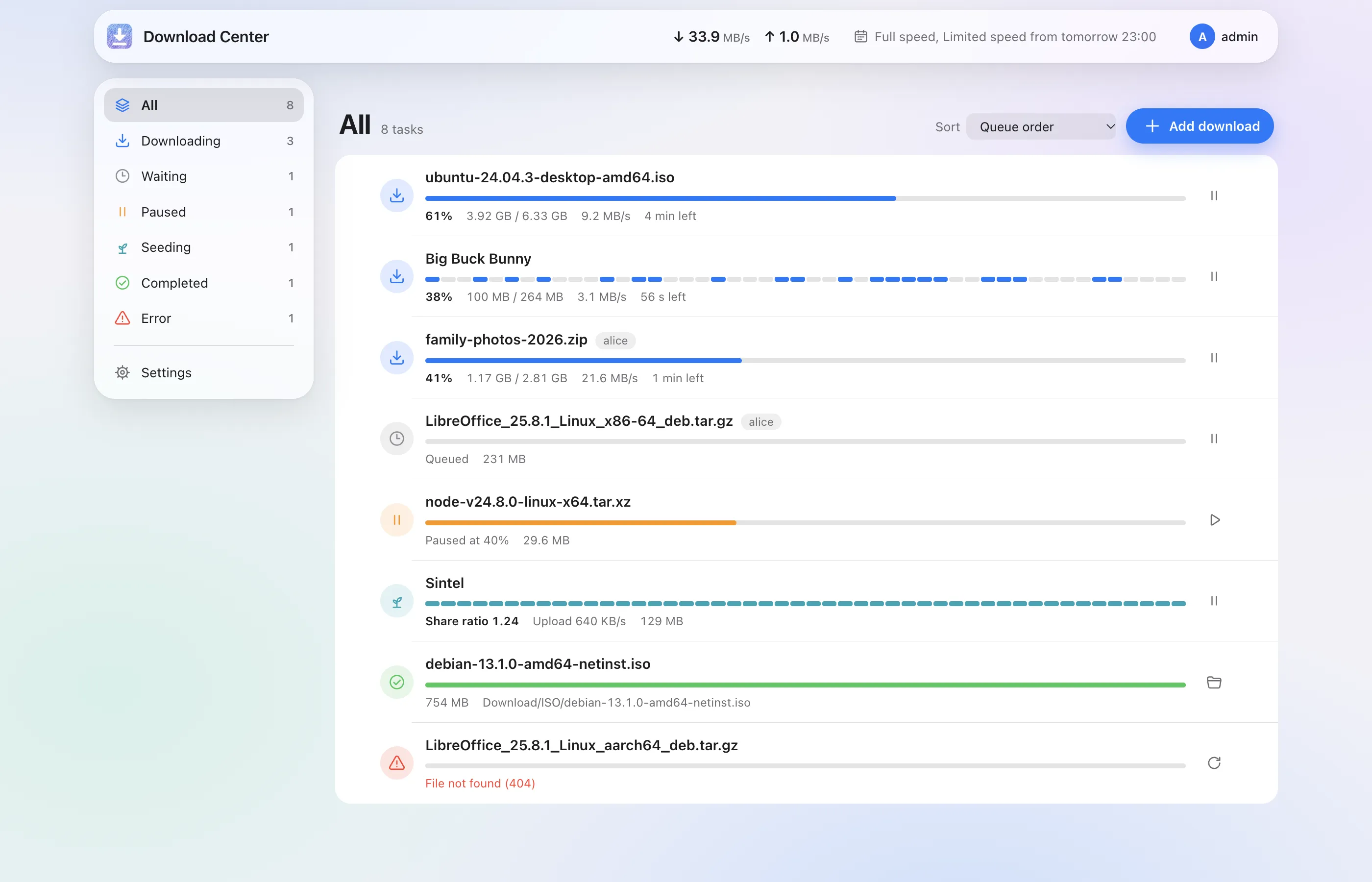
More ways to download
Download Center understands more kinds of links than Download Station, and puts them all in the same list. Paste one link or a whole block of text; it finds the links and asks only what it needs to know.
https://http://Web downloadsHTTP/2, and up to four connections per file when the server allows it.
ftp://ftps://FTP serversPlain or encrypted, with your saved account for the site.
sftp://Any SSH serverThe server's key is remembered on first contact and checked after that.
scp://SCPFor servers that only offer SCP.
magnet:?Magnet linksThe file list appears before you start, so you can pick what to download.
.torrentTorrent filesDrop them on the window, or choose them on your phone.
Picks up where it stopped
HTTP, FTP and SFTP downloads resume after a pause, a lost connection or a restart of the NAS.Proxies for links and torrents
HTTP and SOCKS5, chosen per download or per site, with name lookups through the proxy. When a proxy is set, nothing falls back to a direct connection.Thunder, FlashGet and QQ links
They are decoded into the address they carry, wherever you paste them.

Compared with Download Station
| Downloads from | Download Center | Download Station |
|---|---|---|
| HTTP and HTTPS | Yes | Yes |
| HTTP/2 | Yes | No |
| FTP | Yes | Yes |
| SFTP | Yes | No |
| SCP | Yes | No |
| Torrent files | Yes | Yes |
| Magnet links | Yes | Yes |
Made for your phone, too
Open https://<your NAS>/DownloadCenter/ in any browser. No QTS desktop in between: on a phone, Download Center becomes an app you can use with one hand.


Within reach of your thumb
Tabs and the add button sit at the bottom of the screen. Windows rise from below and close with a swipe down.
On your home screen
Add it to your home screen and it opens full screen, like an app.
Your NAS account
Sign in with the same account and the same rules as QTS, including 2-step verification.
Inside the QTS desktop as well
It also opens as a window on the QTS desktop, and adapts when you make that window narrow.
Hear about it, and answer back
Get a message the moment a download finishes, fails or the disk runs low. In Telegram, and in LINE when your NAS is reachable over HTTPS, you can also reply with a command to check, add, pause and resume downloads.
/add https://cdimage.debian.org/debian-cd/current/amd64/iso-cd/debian-13.1.0-amd64-netinst.iso
Added: debian-13.1.0-amd64-netinst.iso (waiting, #2)
/list
- ubuntu-24.04.3-desktop-amd64.iso61% 9.2 MB/s, 4 min left
- Big Buck Bunny38% 3.1 MB/s, 56 s left
- debian-13.1.0-amd64-netinst.isoWaiting
/pause 1
Paused: ubuntu-24.04.3-desktop-amd64.iso
Download finished: debian-13.1.0-amd64-netinst.iso
Commands include /list, /add <url>, /pause, /resume, /speed and /help. Each chat account is linked to its NAS account with a one-time code, and can do only what that account can.

- TelegramNotifications and commands, without opening your NAS to the internet
- LINENotifications; commands when the NAS is reachable over HTTPS
- Discord, SlackNotifications in a channel
- ntfy, Gotify, BarkPush notifications to your phone
- QTS notification centerEmail, SMS or push, by your QTS rules
- WebhooksSigned with HMAC-SHA256, for your own services
For your own scripts and apps
A REST API with personal access tokens that can do only what you allow, an event stream, chat commands over HTTP and signed webhooks. New notification services can be added with a small JSON description.
What else it does
Click any download to see where it is saved, its files, a preview and, for torrents, who you are connected to.

One list for everything
Paste one link or many, a block of text or a web page address. Duplicates are spotted before they are added.
Choose before you start
Magnet links and torrents show their files first. Keep the ones you want, or only the videos.
Limits and a weekly schedule
Separate limits for links and torrents, a weekly plan of full-speed, limited and paused hours, timed pause, and seeding by ratio or time.
Files where you want them
A temporary location while downloading, and a folder to move finished downloads to.
Users and roles
Administrators see everything. Regular users see only their own downloads, which are saved to their home folder and owned by them.
File-hosting accounts
1fichier, Rapidgator, Real-Debrid and AllDebrid through their official APIs with your own account, or cookies for other sites.
Preview while downloading
Watch or listen to the part that has already arrived, look inside archives, and switch a torrent to download in order.
Your apps keep working
Qget, Qfile and browser extensions connect as before, once Download Station is removed or turned off.
Bring your Download Station setup
Import settings, unfinished downloads, history and site accounts. The import only reads Download Station's data and can be run again.
Runs on your NAS
No account, no cloud
Download Center runs entirely on your NAS. You sign in with your NAS account, and the sign-in itself goes to QTS.
Open source
Every line is on GitHub under the MIT License, so you can see exactly what it does.
Get started
Download the package for your NAS
Pick the file that matches your NAS's processor. In QTS, Control Panel, System Status shows which processor it has.
Install it in App Center
Open App Center, choose Install manually, and select the file. The package has no QNAP digital signature, so App Center warns about it. Allow it when asked, or turn on the App Center setting that allows apps without a valid digital signature.
Open Download Center
From the QTS desktop, or at
https://<your NAS>/DownloadCenter/. The first QTS administrator to sign in becomes its first administrator.
Moving from Download Station? Settings, downloads and site accounts can be imported in Settings once Download Center is installed. Download Station's own files are left as they are.
Coming soon
The first release is being prepared. It will appear here and on the Releases page on GitHub.
Which package? x86_64 is for Intel and AMD processors, arm_64 for 64-bit ARM. arm-x41 and arm-x31 contain the same ARMv7 software, packaged under the two names QNAP uses for its ARMv7 models.
Use it lawfully
- Download Center downloads only the links, torrent files and magnet links you give it. It doesn't provide, search for or recommend any content.
- Only download what you have the right to obtain.
- BitTorrent shares the pieces you have with other people while you download, and they can see your IP address.
An independent project
Download Center is made independently of QNAP. It takes the place of Download Station on your NAS, and imports its settings and downloads without changing them.
You are responsible for what you download. As the license says, the software comes without warranty.

Keep Download Center free
Download Center has no ads and no paid version. If it saves you time, a boba or a small tip helps me keep it working through QTS updates, and build what comes next.
Boba is paid by card. No PayPal account needed.